Get Beim Goods Livestream Chat TTS From Google Chrome Store →
As streamers ourselves, two of the biggest pain points are: 1) insufficient CPU/compute, because every millisecond of latency counts, and 2) cannot read audience comments in real time, as the streaming content is always on full screen display. Both of these problems can be solved by a good TTS. Beim Goods Livestream Chat TTS is only 70KB in packet size. No OBS required. It uses the browser's native speech synthesizer, so it converts text to audio locally and never on a third party server. It consumes little CPU cycles.
Here is how to add TTS Text-To-Speech to Twitch.
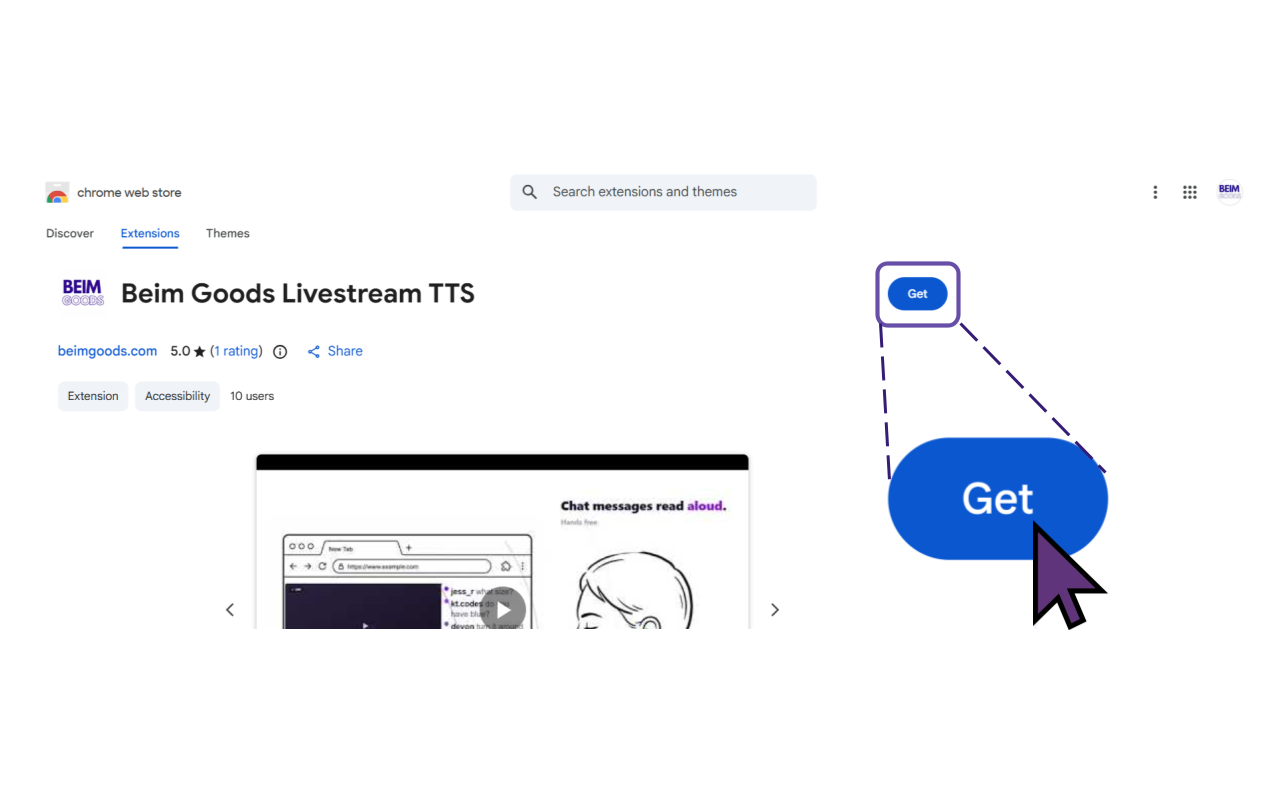
Go to our Google Chrome Web Store and you will see ‘Beim Goods Livestream Chat TTS’.
Then click ‘Get’ to install Beim Goods Livestream Chat TTS.
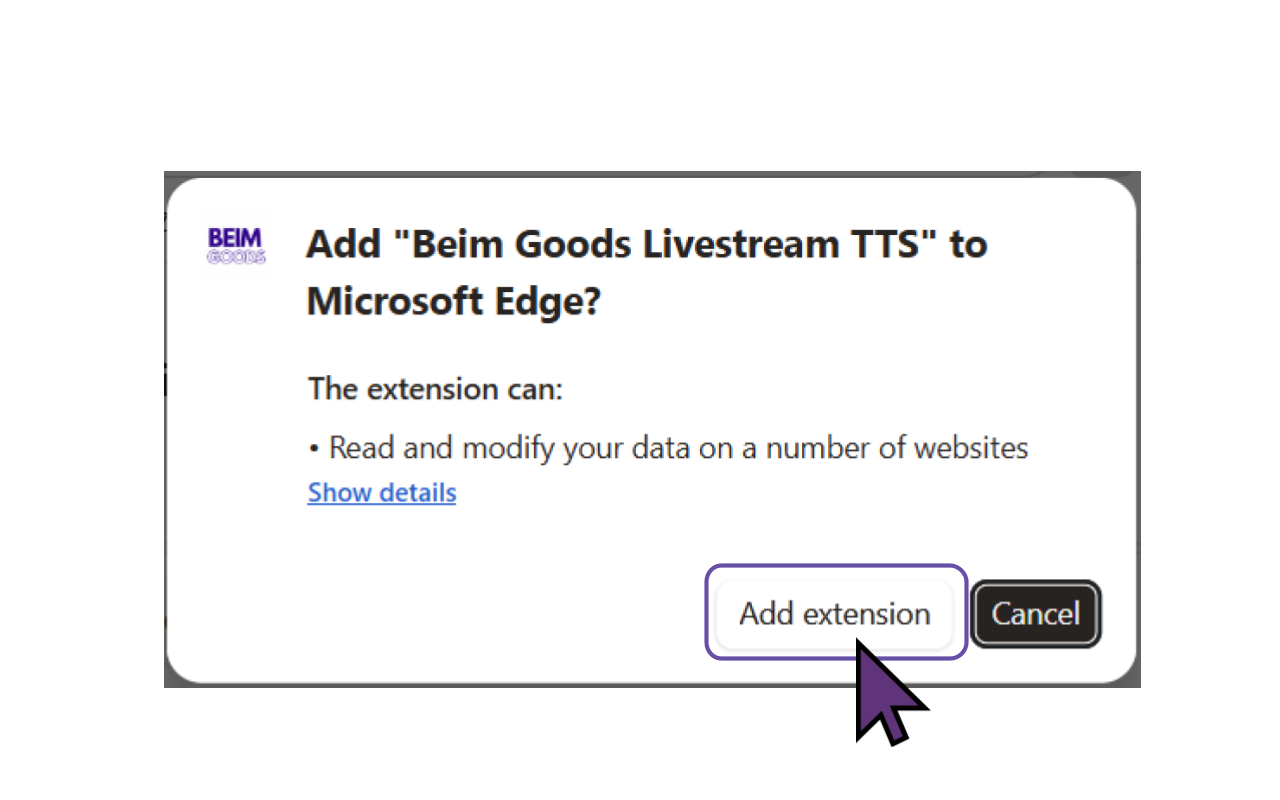
Then click ‘Add extension’ to add TTS Text To Speech to the browser. This version of Beim Goods Livestream Chat TTS is developed for Chromium based browsers, so it works for the majority of browsers such as Chrome Browser, Microsoft Edge, Opera, Brave, Vivaldi, Epic Privacy Browser, Slimjet, Comodo Dragon, Torch Browser etc.
You are ready, TTS Text To Speech is installed for Twitch!
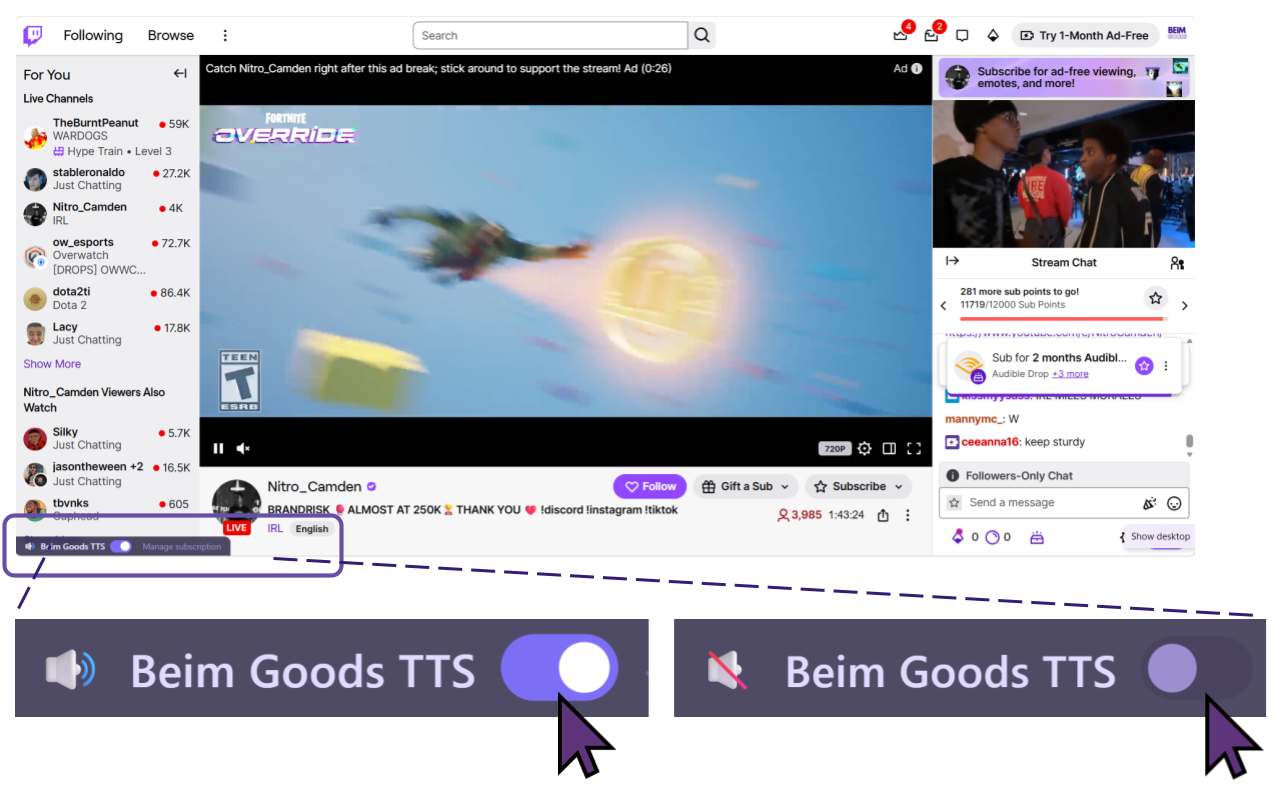
During a livestream, the streamer can choose to turn TTS Text To Speech On or Off using the onscreen toggle switch. Goods Livestream Chat TTS offers a 30 day free trial, followed by a $1 monthly fee. Both the free and paid versions provide identical features, allowing users to fully explore the service before committing to a subscription.