As part of the Whatnot seller community ourselves, live shows are so exciting. From the 5 second countdown timer, to the audience cheering you on, to the insane deals bidders are getting. How exciting. Chats are coming in, buyers want to see a specific item: “do you have Dell laptop?” “bundle shipping?” These are all critical selling points that need to be addressed immediately, or the seller loses a customer. Many large Whatnot seller accounts have Mod, a helper that can monitor the chats, and respond to questions. But what if the seller does not have a Mod? 90% of the live sellers work alone. And missing buyer questions leads to missed sales opportunities, and it becomes a vicious cycle. Adding a TTS Text-To-Speech will address this issue. A purposefully designed TTS Text-To-Speech reads buyer questions out loud for the sellers. So the seller won't miss important sales opportunities.
Here is how to add TTS Text-To-Speech to Whatnot Live Shows.
Go to Google Chrome Web Store, and search for ‘Beim Goods Livestream Chat TTS’. Beim Goods Livestream Chat TTS provides a 30‑day complimentary trial, after which the monthly cost is $1. The free and paid tiers share the exact same functionality, giving users the chance to experience the full capabilities before deciding to subscribe.
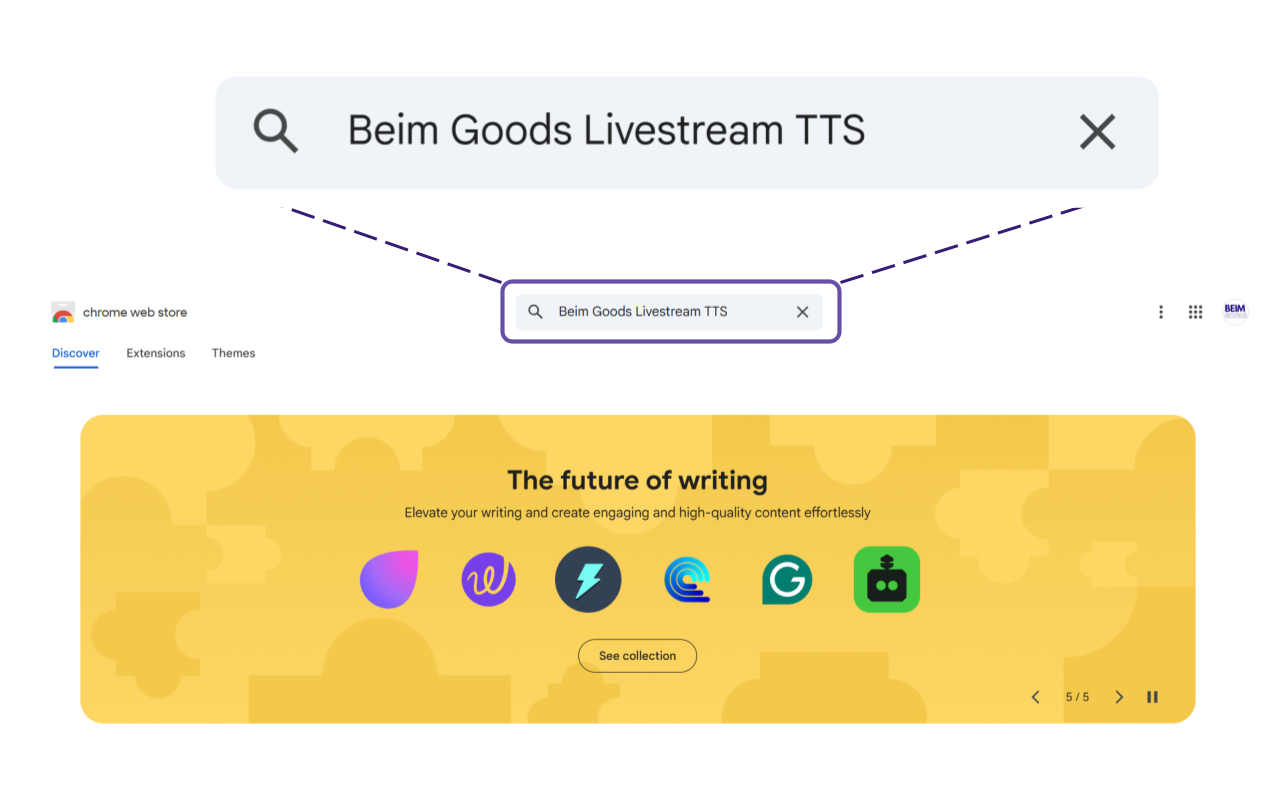
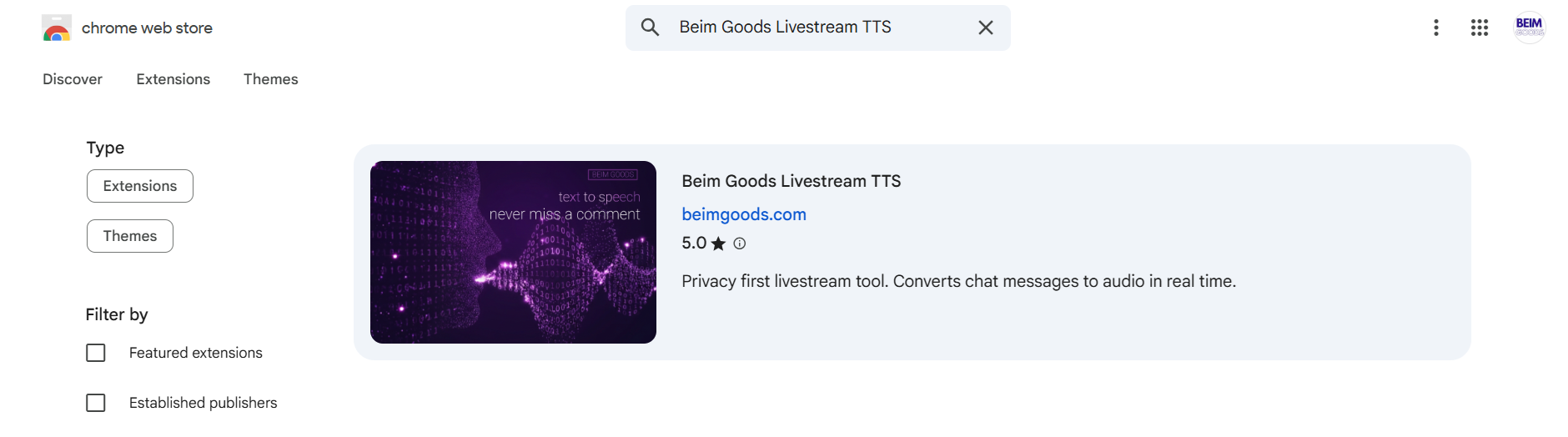
The TTS should look like this in Google Chrome Web Store. And click on it.
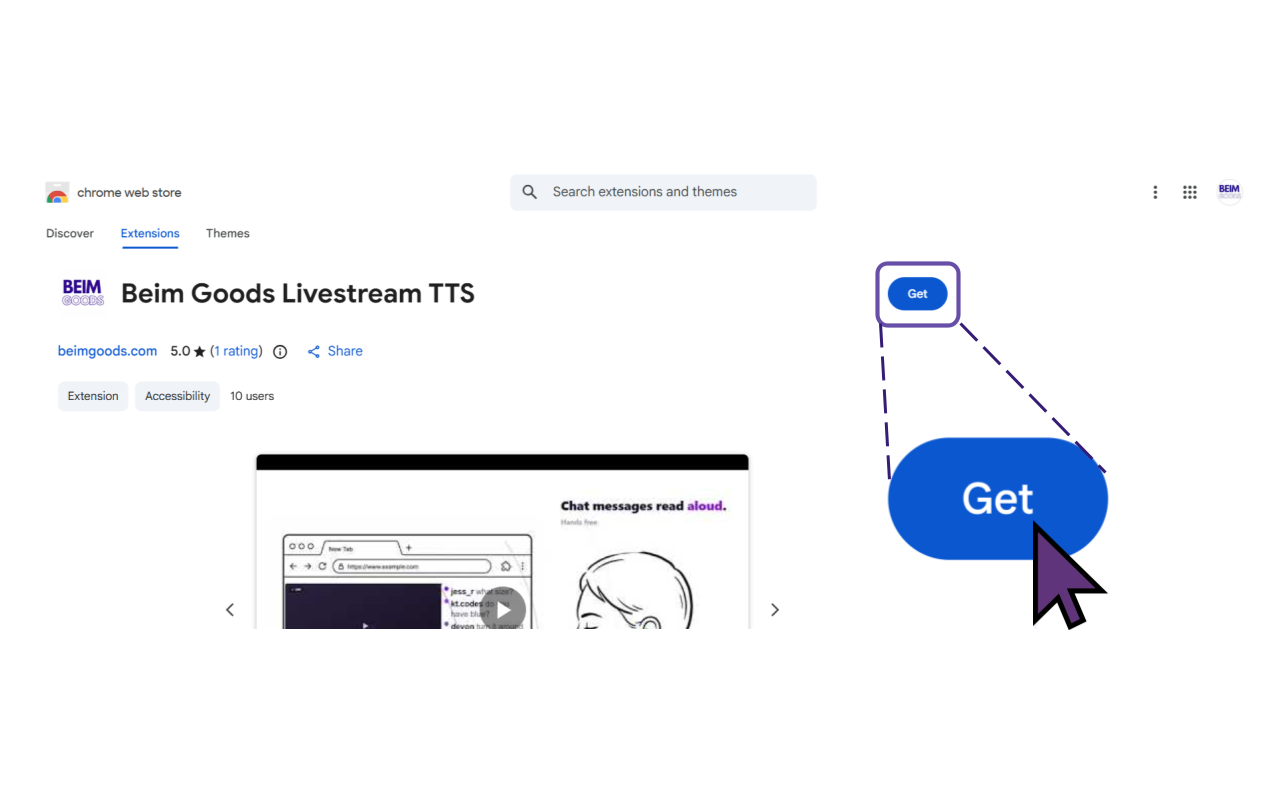
Then click ‘Get’ to install the Livestream Chat TTS.
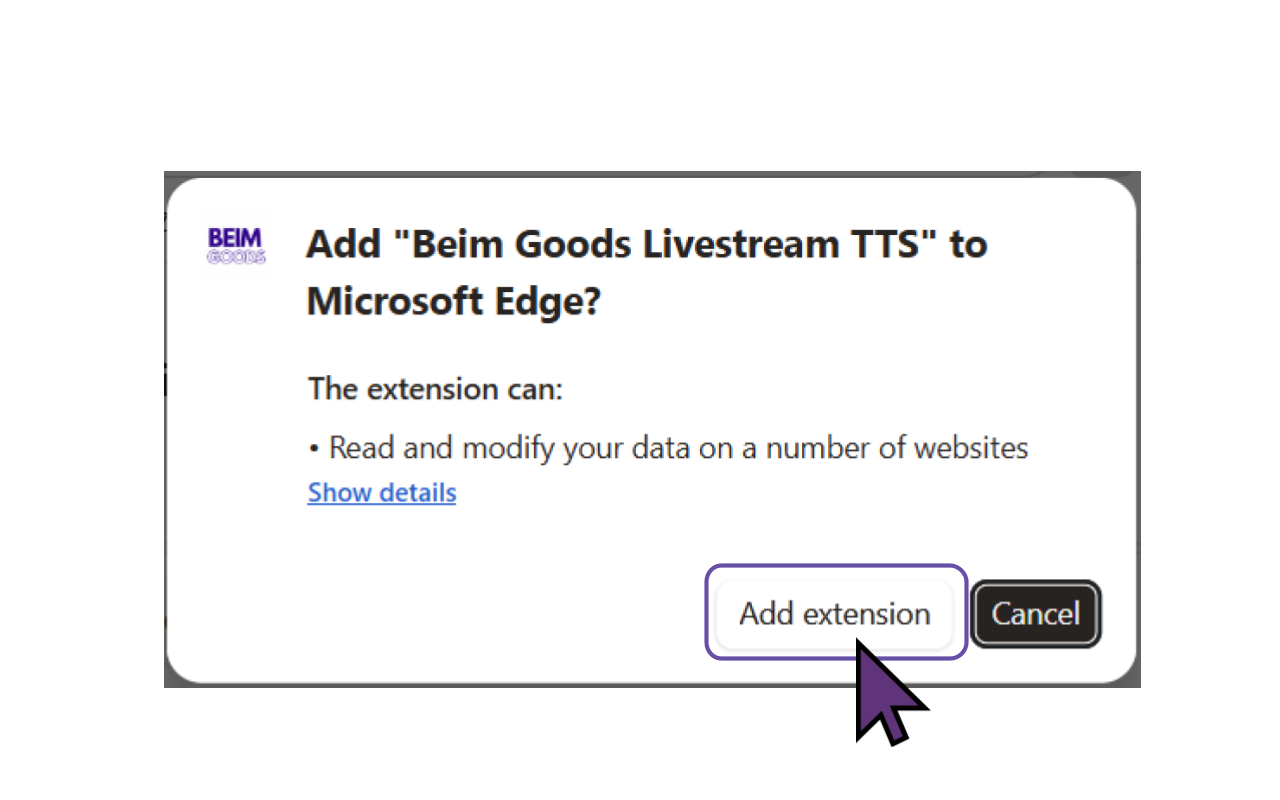
Then click ‘Add extension’ to add TTS Text To Speech to the browser. This version of Beim Goods Livestream Chat TTS is developed for Chromium based browsers, so it works for the majority of browsers such as Chrome Browser, Microsoft Edge, Opera, Brave, Vivaldi, Epic Privacy Browser, Slimjet, Comodo Dragon, Torch Browser etc.
Voilà, TTS Text To Speech is installed for Whatnot Live Show!
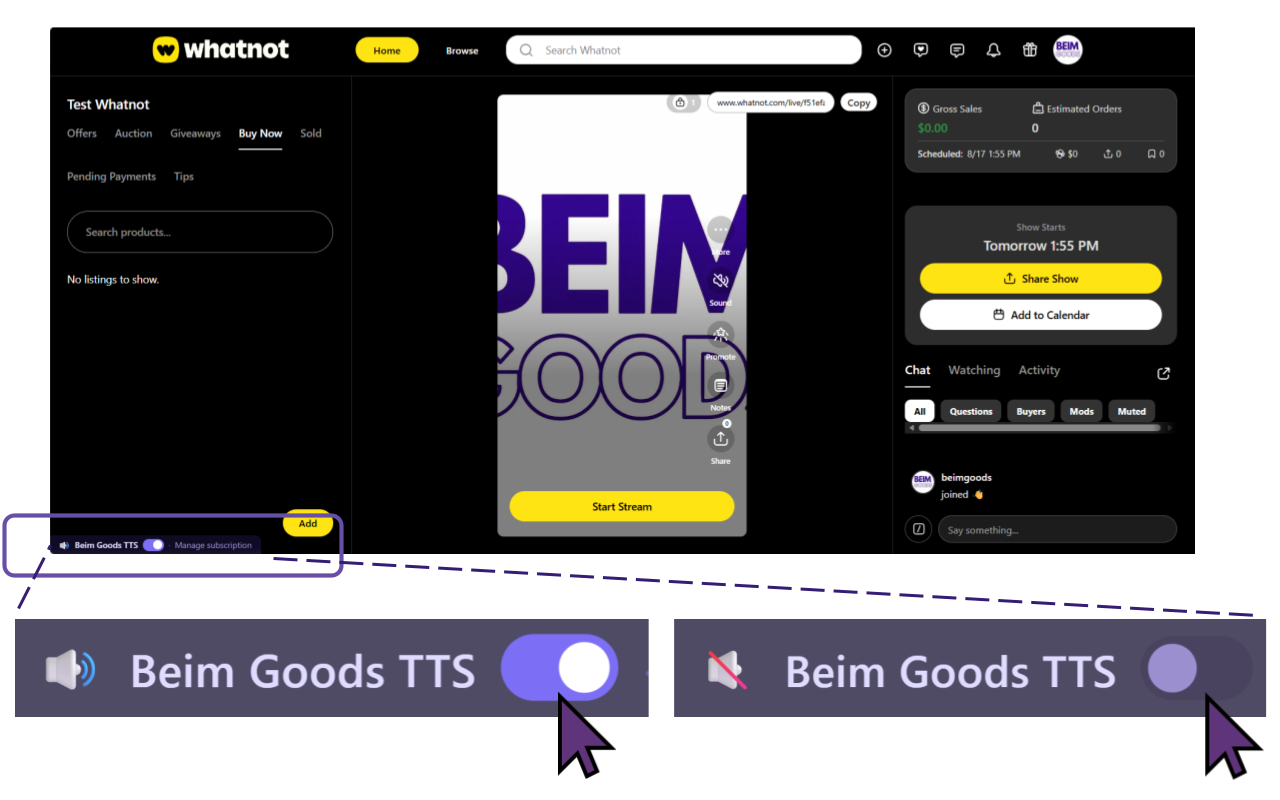
During the show, the host can choose to turn TTS Text To Speech On or Off.
 Get Beim Goods Livestream Chat TTS →