Livestreaming is in a hyperbolic growth trajectory. In 2025, viewers consumed ~120 billion hours of live content. YouTube Live viewership consumed nearly ~50% of these hours (~56 billion hrs in 2025). As a livestreamer this is one of the platforms that should not be missed.
As streamers ourselves, two of the biggest pain points are: 1) insufficient CPU/compute, because every millisecond of latency counts, and 2) cannot read audience comments in real time, as the streaming content is always on full screen display. Both of these problems can be solved by a good TTS. Beim Goods Livestream Chat TTS is only 70KB in packet size. It uses the browser's native speech synthesizer, so it converts text to audio locally and never on a third party server. It consumes little CPU cycles.
Here is how to add TTS Text-To-Speech to YouTube Live.
Go to Google Chrome Web Store, and search for ‘Beim Goods Livestream Chat TTS’.
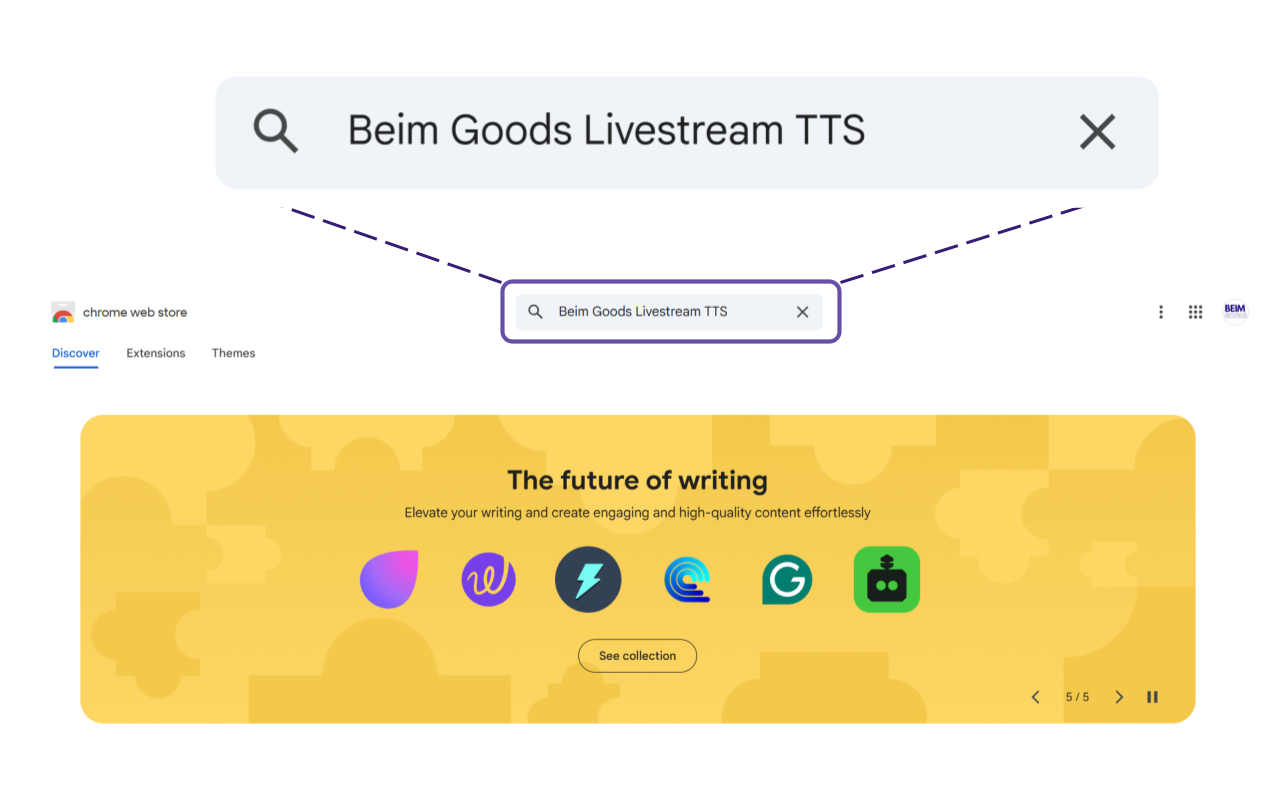
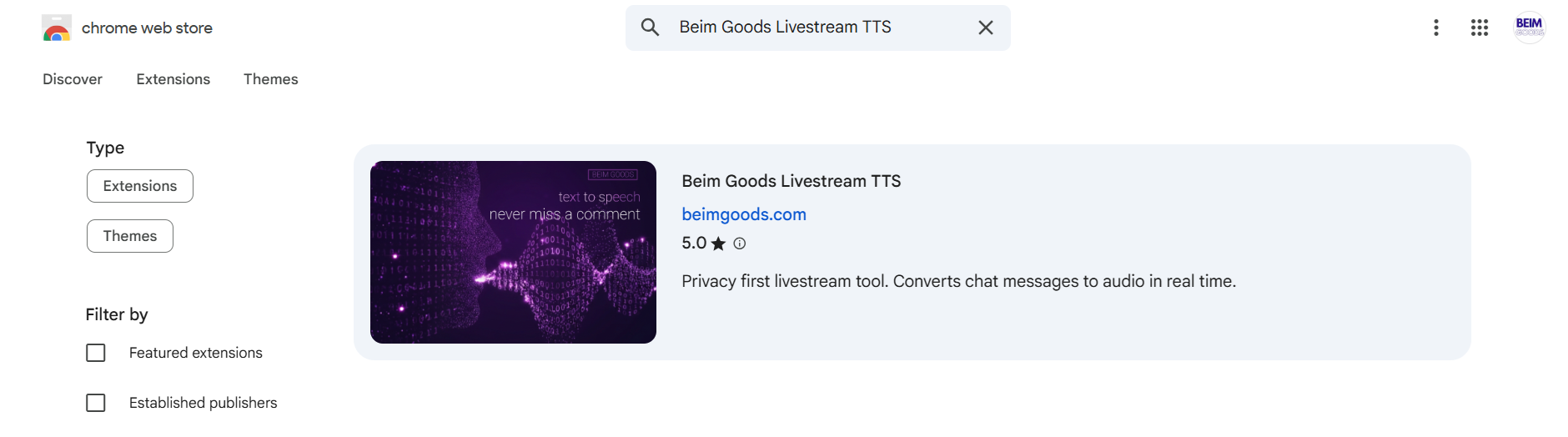
The TTS should look like this in Google Chrome Web Store. And click on it.
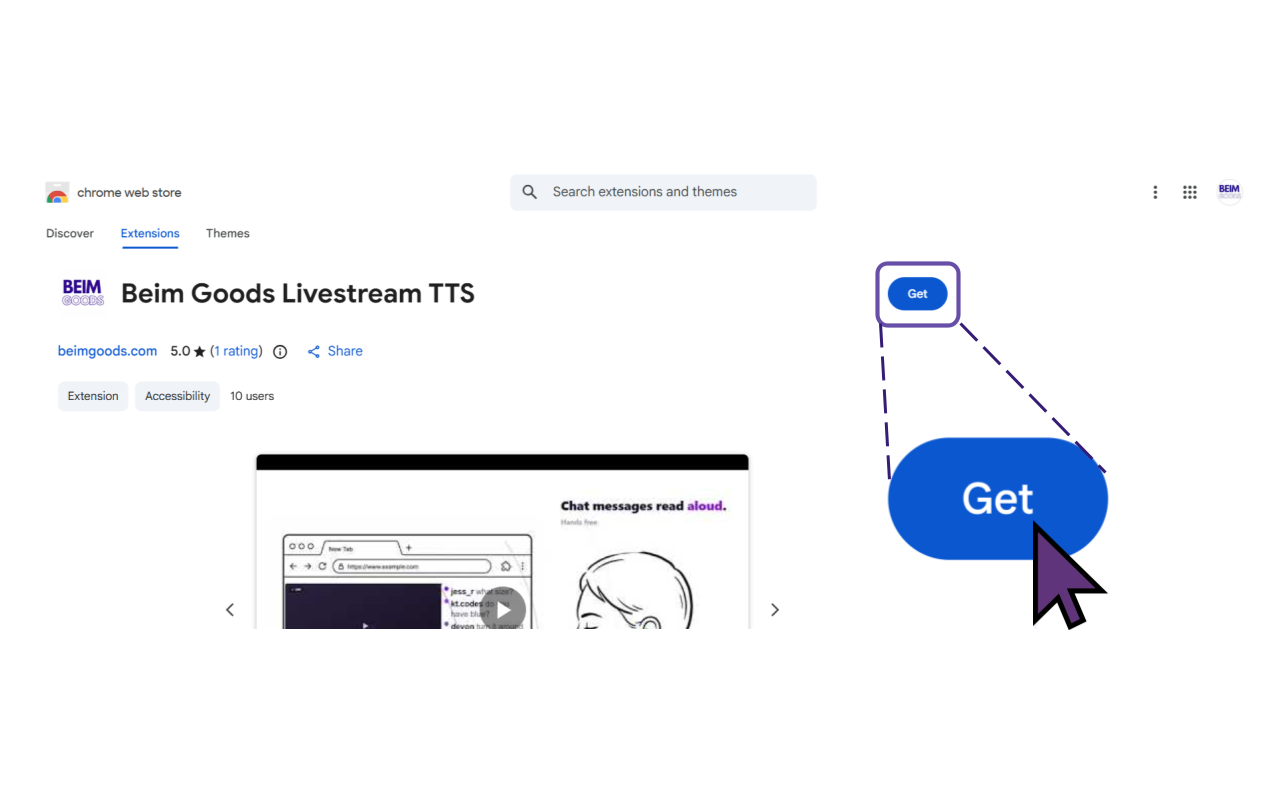
Then click ‘Get’ to install the Livestream Chat TTS.
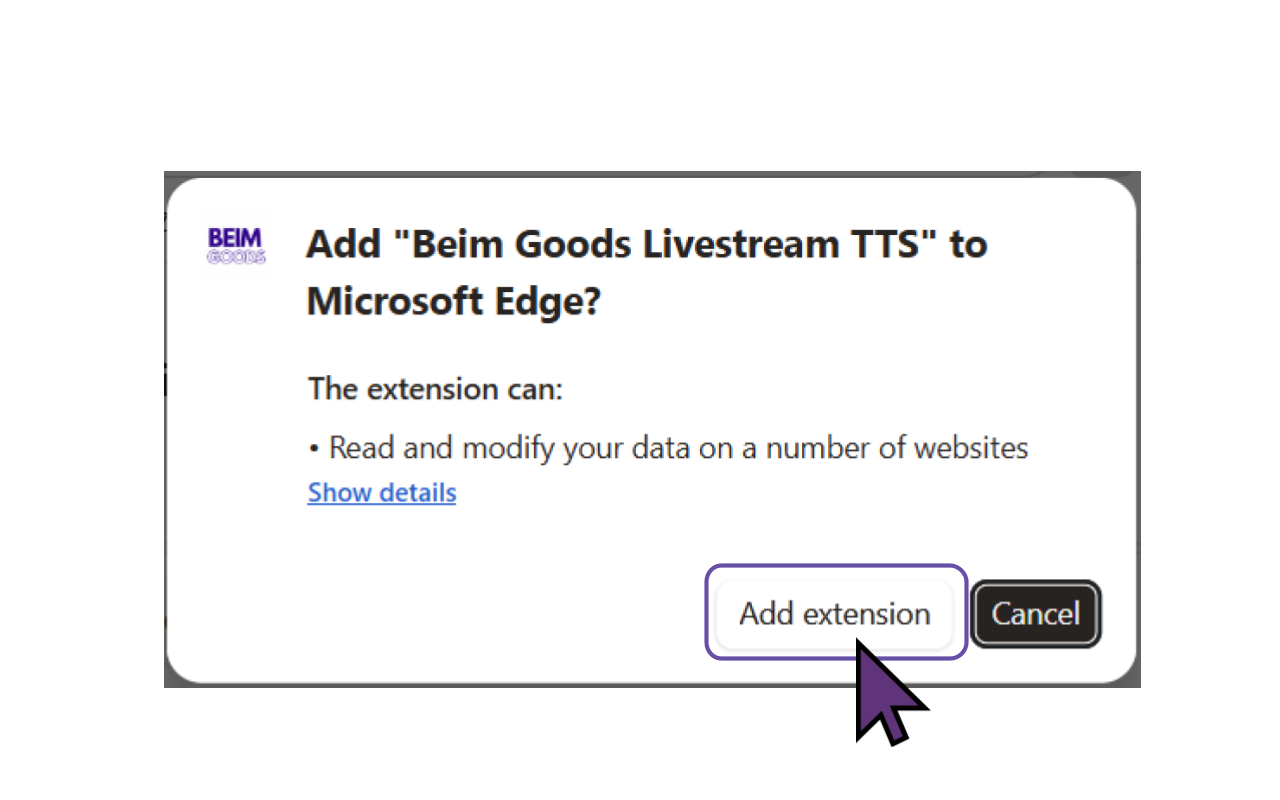
Then click ‘Add extension’ to add TTS Text To Speech to the browser. This version of Beim Goods Livestream Chat TTS is developed for Chromium based browsers, so it works for the majority of browsers such as Chrome Browser, Microsoft Edge, Opera, Brave, Vivaldi, Epic Privacy Browser, Slimjet, Comodo Dragon, Torch Browser etc.
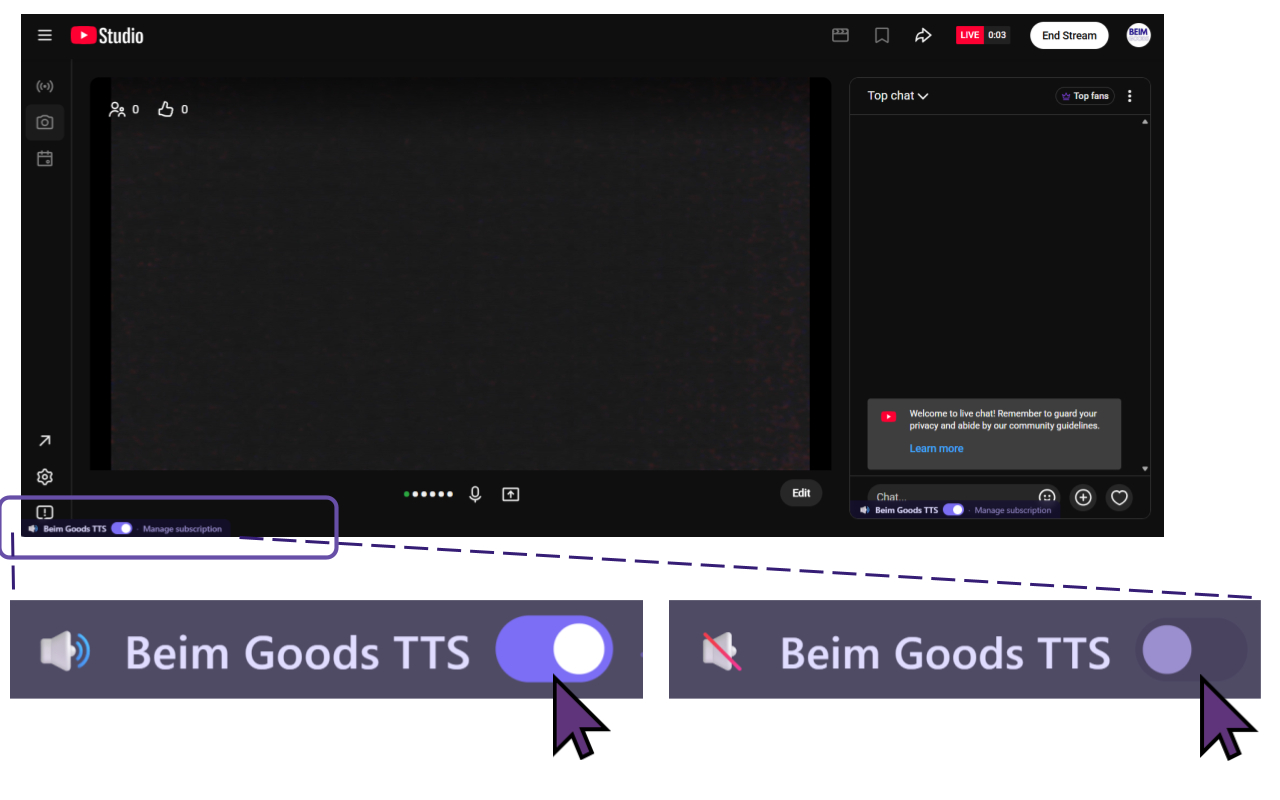
Voilà, TTS Text To Speech is installed for YouTube Live! This works for YouTube Live as well as YouTube Studio.
During a livestream, the streamer can choose to turn TTS Text To Speech On or Off. This feature is present for both free and paid version of the TTS. We designed it this way, so the users can sample the full experience for 30 days before payig $1/month.
 Get Beim Goods Livestream Chat TTS →