We all use online meetings. Before 2020, online meetings were used nearly exclusively by the corp 9-5 workers, so mostly Cisco Webex and Microsoft Teams users. During months of quarantine, everyone found ways to use online meetings in creative ways. For example, our 2020 family Thanksgiving dinner and New Year’s Eve party were hosted on Zoom. And the popularity and user base of Zoom had grown tremendously ever since. In 2025, Zoom active user count is ~56% of the global video‑conferencing population count. Followed by Microsoft Teams and Google Meet.
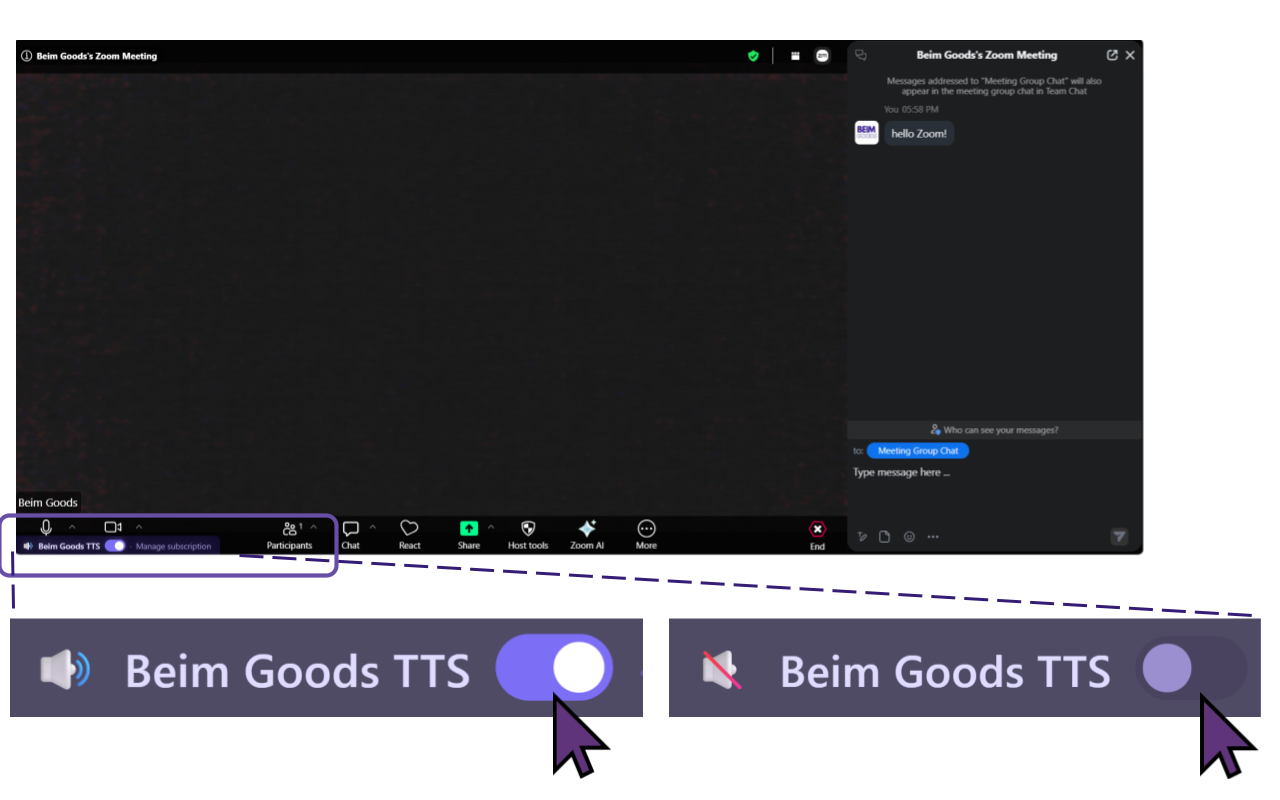
During a Zoom meeting, the presenter often shows a slide, a photo, presenting a project they are actively working on, or an interview where the interviewee is typing code. Regardless of the use case, the presenter needs to focus, and especially when the meeting is in presentation mode, the presenter cannot see audiences’ comments in the chat in real time. Or a chat TTS software is so heavy that it consumes quite a bit of compute, so the computer slows down. These problems can be solved by a good TTS software that is lightweight (e.g. 70KB) and is operational during fullscreen presentation mode. Additionally, the presenter can choose to turn the TTS on/off with a small onscreen toggle switch.
Here is how to add TTS Text-To-Speech to Zoom. IMPORTANT: must choose ‘Join from browser’ for this particular TTS to work.
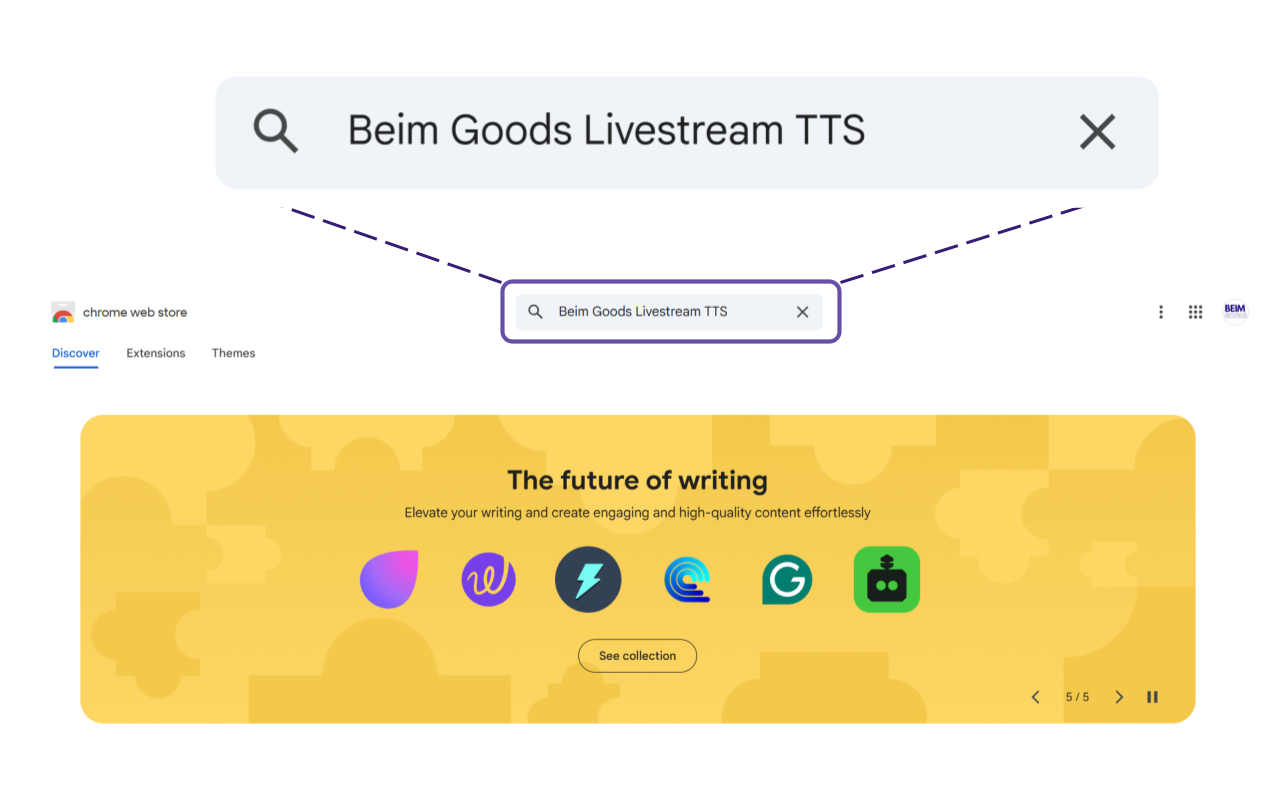
Go to Google Chrome Web Store, and search for ‘Beim Goods Livestream Chat TTS’. All the features are completely free for 30 days, and only cost $1/month after trial period ends. So users can fully experience the TTS before committing to a subscription.
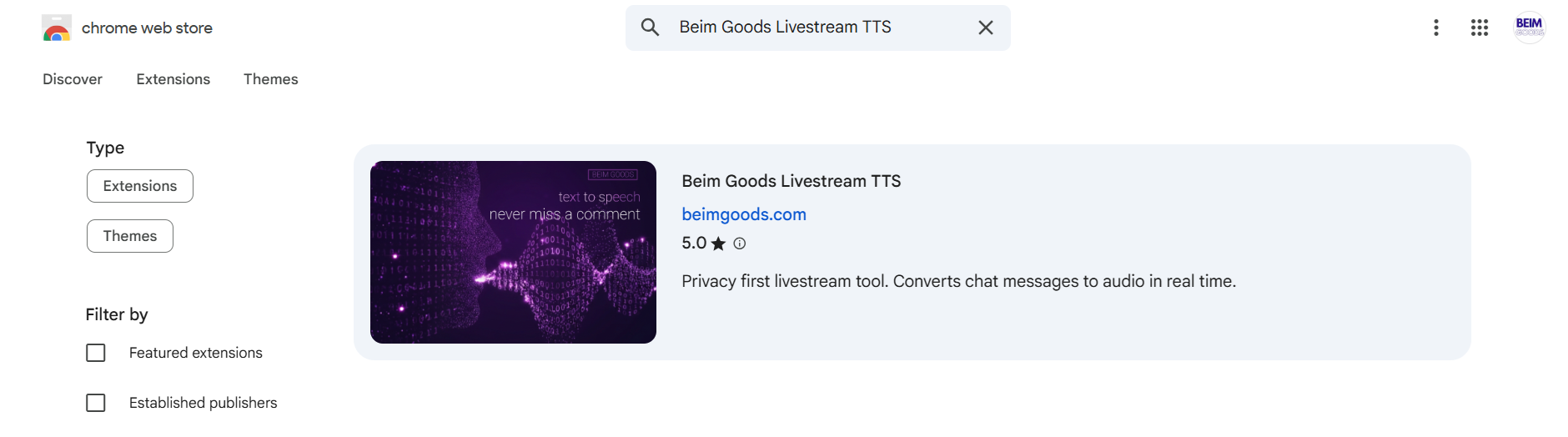
The TTS should look like this in Google Chrome Web Store. And click on it.
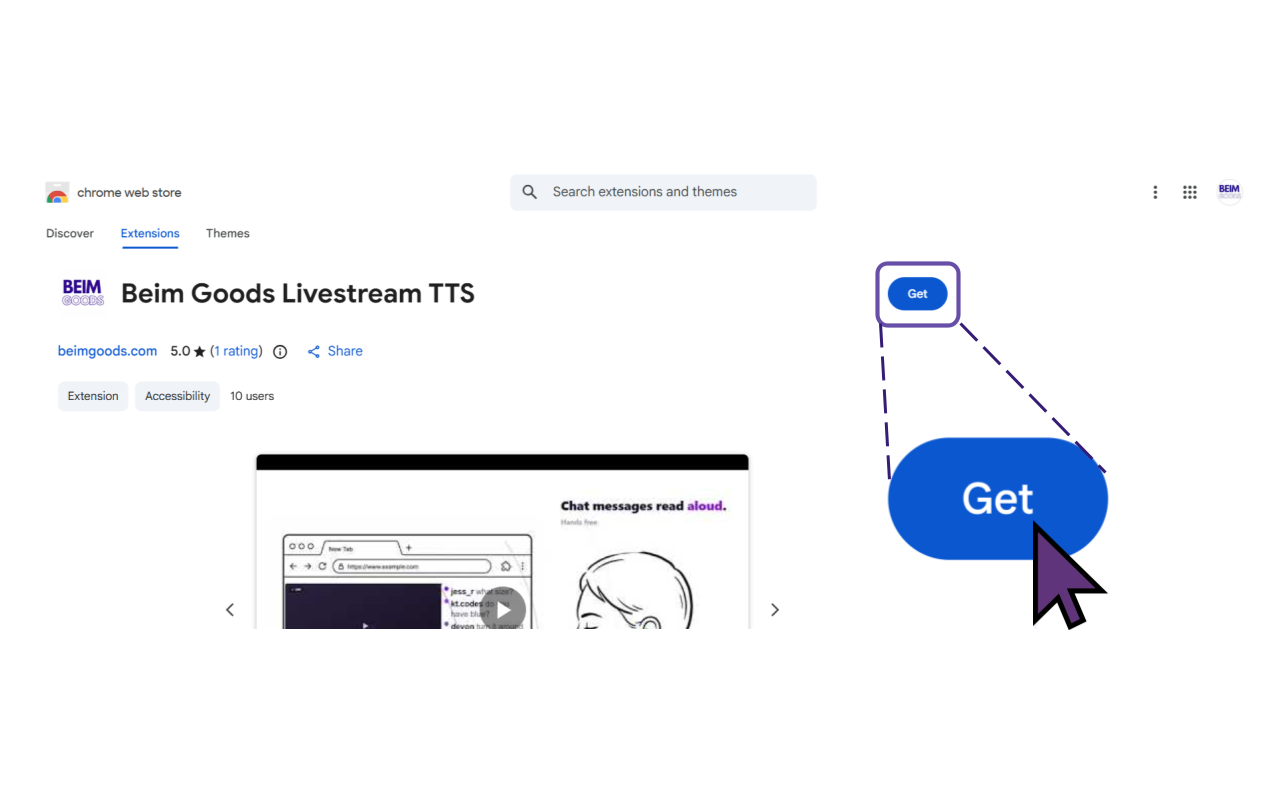
Then click ‘Get’ to install the Livestream Chat TTS.
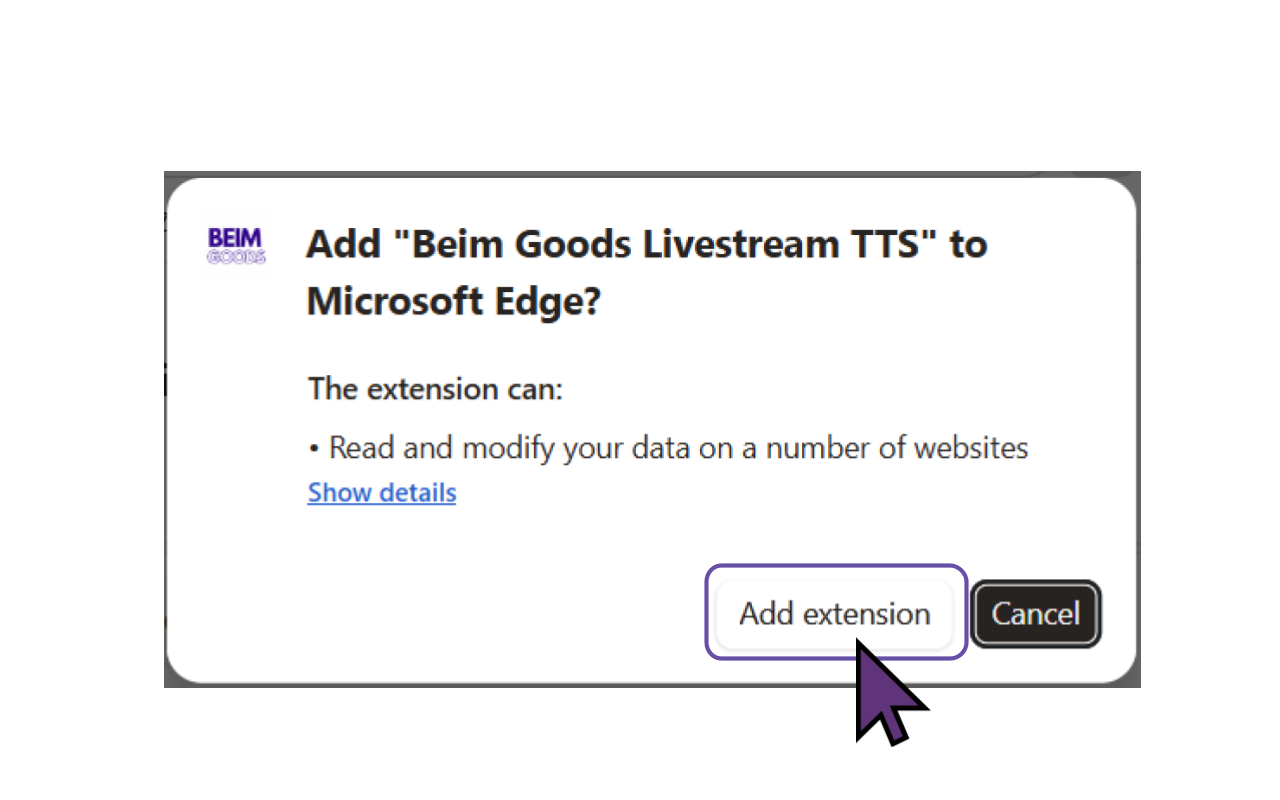
Then click ‘Add extension’ to add TTS Text To Speech to the browser. This version of Beim Goods Livestream Chat TTS is developed for Chromium based browsers, so it works for the majority of browsers such as Chrome Browser, Microsoft Edge, Opera, Brave, Vivaldi, Epic Privacy Browser, Slimjet, Comodo Dragon, Torch Browser etc.
Voilà, TTS Text To Speech is installed for Zoom!
During a presentation, the presenter can choose to turn TTS Text To Speech On or Off.
 Get Beim Goods Livestream Chat TTS →